



 Starting a Zoho Trial? Don’t Let OneAuth Be Your First Commitment!
You’ve signed up for a Zoho trial. You’re excited. You’re ready to explore Zoho CRM, build some workflows, import your contacts, and finally get your business organized.
Then Zoho asks you to set up OneAuth.
You click a few buttons, download an app, scan a QR code, approve a notification, and move on.
What could possibly go wrong?
Well, quite a bit, actually.
Don’t Sign on the Dotted Line (Or Tap Enable MFA) in Zoho Without Understanding the Repurcussions
When people start a new software trial, they tend to be very agreeable. They click Accept, Agree, Enable, Continue, and just about anything else that gets them to the next screen.
It’s a little like buying a car because you liked the color without checking whether it has an engine.
OneAuth is Zoho’s multi-factor authentication (MFA) application. It’s designed to add security to your Zoho account by requiring additional verification when you sign in. It can even allow passwordless sign-in.
Sounds great, right?
It can be. But there’s a catch.
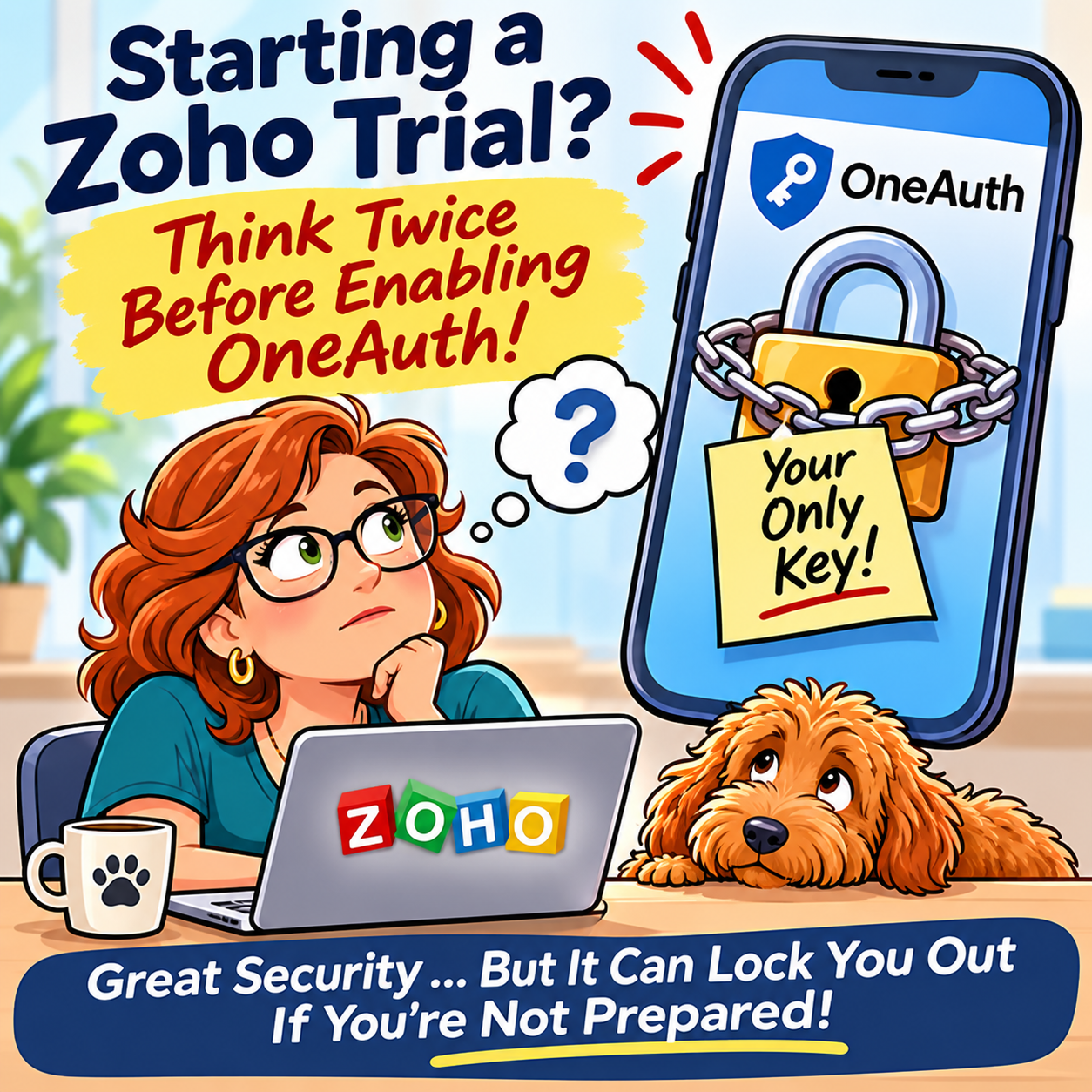
When you enable OneAuth as your primary authentication method, your phone effectively becomes the gatekeeper to your Zoho account. If you lose your phone, replace it, uninstall the app, or simply don’t have access to it, you may find yourself unable to log in.
And here’s the particularly frustrating part: you need to be able to access your Zoho account to change the authentication settings.
Yes, you read that correctly. You may need access to the account you’re trying to get into to remove the thing that’s preventing you from getting into it.
Welcome to the digital equivalent of locking your keys in the car while the engine is running.
OneAuth Can Be a Problem for New Zoho Users
When you’re evaluating Zoho, your first priority should be understanding the software. You should be exploring CRM modules, testing workflows, looking at integrations, and determining whether Zoho is the right fit for your business.
You probably aren’t ready to commit to a particular authentication process just yet.
Here are a few things to consider before enabling OneAuth:
- Your phone becomes important: Depending on your configuration, you’ll need your phone to approve login attempts.
- Changing phones can be complicated: You need to properly transfer or recover your authentication setup.
- Uninstalling the app isn’t necessarily enough: Removing OneAuth from your phone does not automatically remove the MFA requirement from your Zoho account.
- You can lock yourself out: If OneAuth is your only configured authentication method and you lose access to it, getting back into Zoho can become a support issue.
- Passwordless sign-in adds another layer of dependency: You may be relying on your phone even more than you realize.
OneAuth has legitimate security benefits, and I’m certainly not suggesting you leave your business accounts unprotected. I’m suggesting that you understand the implications before enabling it.
Already Enabled Zoho OneAuth? Here’s How to Remove It
If you’ve enabled OneAuth and want to return to a more traditional login process, you can change your settings.
Important: You must be able to log in to your Zoho account to follow these instructions. Don’t uninstall OneAuth from your phone first!
- Log in to your Zoho account at https://accounts.zoho.com.
- Navigate to Multi-Factor Authentication in the left-hand menu.
- Locate OneAuth in your list of configured authentication methods.
- Click the delete (trash) icon next to OneAuth.
- Confirm that you want to remove the authentication method.
If OneAuth is your only configured MFA method, you may need to disable MFA through the account’s authentication settings rather than simply deleting one method. If your organization administrator has enforced MFA, you’ll need to contact that administrator.
Once you’ve successfully changed your settings, test your login before removing the OneAuth app from your phone.
If you’ve already lost access, don’t panic just yet. Zoho provides alternative recovery methods, including backup verification codes, passphrases, and other previously configured authentication methods. If none are available, you’ll need to contact Zoho Accounts Support.
My Advice: Slow Down!
Starting a Zoho trial should be an opportunity to explore, experiment, and learn. You don’t have to accept every recommendation or enable every feature that pops up during setup.
Before clicking that tempting Enable button, ask yourself:
- Do I understand what this feature does?
- Will it change how I access my account?
- Can I reverse the decision?
- What happens if I lose access to my phone?
A few extra minutes of research can save you hours of frustration later.
At Tech Benders, we help businesses implement Zoho CRM and other Zoho applications every day. We want you to take advantage of the security features Zoho offers, but we also want you to make informed decisions.
Remember, a free trial is a great time to explore your options. It’s not a legally binding agreement to click every button Zoho puts in front of you!
Explore first. Understand second. Enable third.
Your future self (and your IT consultant) will thank you!
Leave a Reply