



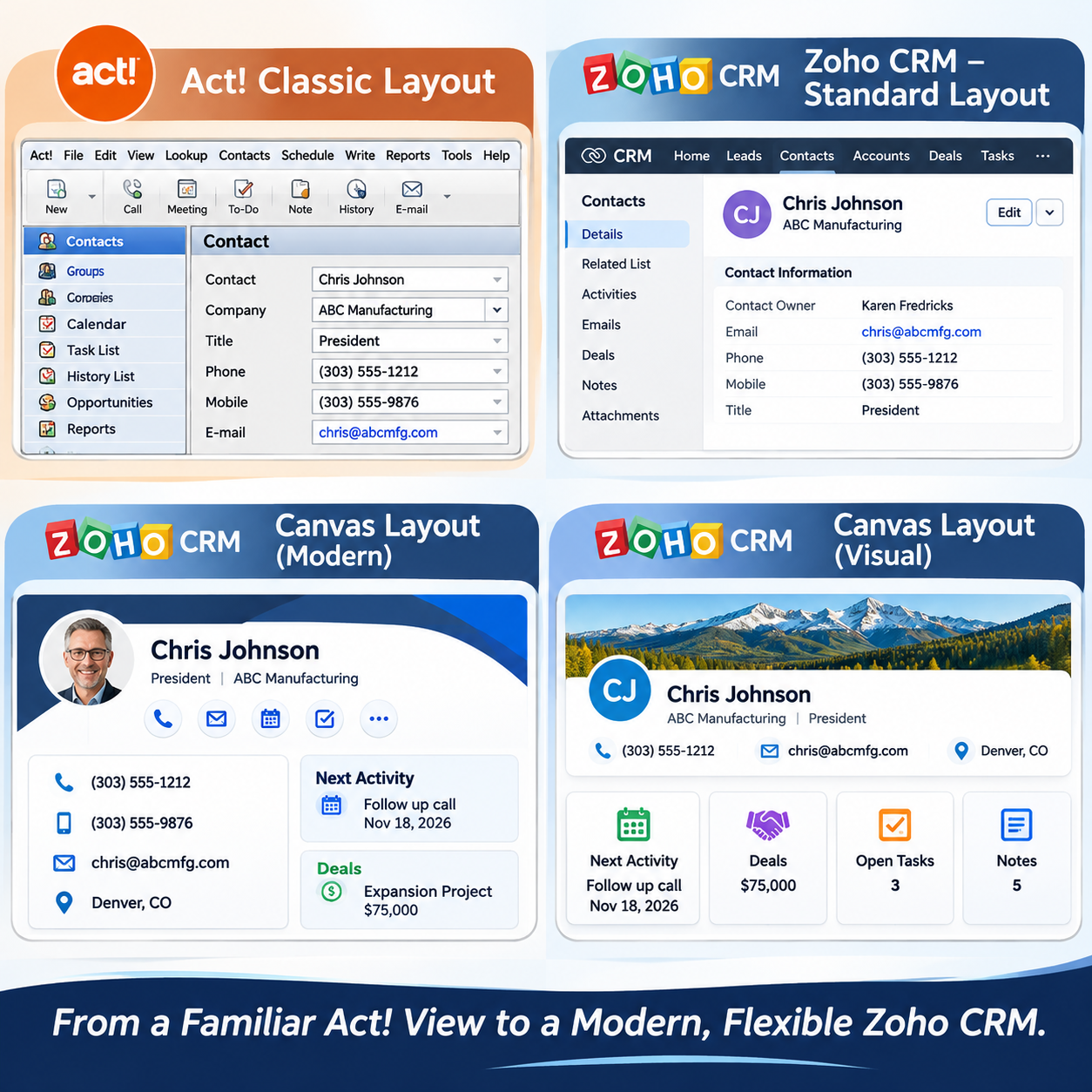
Moving from Act! to Zoho? Don’t Bring Your Old Layout Along for the Ride!
When businesses move from Act! CRM to Zoho CRM, one of the first requests we often hear is:
“Can you make Zoho look just like Act!?”
It’s an understandable request. You’ve spent years working with Act!, you’ve become comfortable with its screens, and your employees know exactly where to find everything. Recreating that familiar layout seems like the easiest way to make the transition painless.
But there’s a problem with that approach.
Your Act! layout was designed around Act!’s functionality, not Zoho’s.
Trying to duplicate it in Zoho can actually prevent you from taking advantage of many of the features and capabilities that made you choose Zoho in the first place.
Let’s look at why a fresh approach to your CRM layout is usually the better investment.
Your Old Act! Layout Reflects an Old Way of Working
Act! has been a reliable CRM for many businesses for decades. Its layout, navigation, tabs, fields, and activity management features reflect the way Act! was designed to work.
Zoho CRM, however, is a different kind of platform.
It offers a much broader set of tools, including:
- Custom modules and related records
- Workflow automation
- Advanced reporting and dashboards
- Multiple views of your information
- AI-powered assistance through Zia
- Custom buttons and actions
- Blueprint process management
- Canvas-designed interfaces
- Integration with other Zoho applications
When you simply recreate your Act! layout, you’re essentially putting a new engine inside an old car and expecting it to perform differently.
You may have successfully transferred your data, but you haven’t necessarily improved the way your business operates.
When Replicating Act! Makes Sense
There is one situation where recreating an Act!-style layout can be a reasonable choice.
Some longtime Act! users are resistant to change. They’ve used the same screens for 10, 15, or even 20 years. They know where every field is located, and they don’t want to spend time learning a new interface.
For these users, maintaining a familiar layout can make the initial transition easier.
There is nothing wrong with making employees comfortable during a CRM migration. In fact, user adoption is critical to a successful implementation.
However, there’s a difference between making Zoho easy to use and making Zoho look like Act!.
If you prioritize familiarity over functionality, you risk hiding some of the very features that could make your business more productive.
Our recommendation? Preserve the information your employees need, but take advantage of the opportunity to improve how they access and use it.
Understanding the Different Types of Zoho CRM Layouts
One of the great things about Zoho CRM is that you’re not limited to a single screen design. You have several options for organizing and presenting information.
1. Standard Zoho CRM Layouts
<Standard Layouts>
Zoho’s standard layouts provide a clean, organized way to display information in your Leads, Contacts, Accounts, Deals, and other modules.
You can organize fields into sections, control field placement, make fields mandatory, and determine which information appears on a record.
You can also create multiple layouts within the same module.
For example, your sales team might need a different Contact layout than your customer service department. Rather than forcing everyone to work with the same screen, you can provide layouts appropriate to each role or process.
Why we like them: Standard layouts are flexible, relatively easy to maintain, and take advantage of Zoho’s native functionality without unnecessary customization.
2. Multiple Layouts
Zoho allows you to create multiple layouts within a module and assign them based on profiles, record types, or other supported criteria.
For example, a company might have:
- A Prospect Contact layout
- An Active Customer layout
- A Vendor layout
- A Partner layout
Each can contain the fields and sections most relevant to that type of record.
This is particularly useful for businesses that have been trying to squeeze several different types of records into one enormous Act! layout.
Instead of displaying dozens of fields that aren’t relevant to everyone, you can create a more focused experience.
3. Canvas Layouts
<Canvas Layouts>
Now we’re getting to one of the most interesting features of Zoho CRM!
Canvas is Zoho’s visual design tool that allows you to customize the appearance of CRM record pages.
Rather than being limited to the traditional arrangement of fields and sections, Canvas lets you design a more visually appealing and intuitive interface.
You can use elements such as:
- Custom colors and backgrounds
- Images and icons
- Different fonts and text styles
- Cards and information panels
- Related lists
- Buttons and actions
- Visual groupings of important information
Imagine opening a Contact record and immediately seeing a well-organized customer profile with contact information, company details, recent activities, important notes, and related records presented in attractive, easy-to-read sections.
You can emphasize the information that matters most instead of making users scroll through a long list of fields.
Canvas is especially valuable when you want to give your employees a more modern, streamlined experience.
And here’s the important part: Canvas lets you design around the way your business works today, rather than the way Act! worked 15 years ago.
4. Custom Views and List Views
Although these aren’t record layouts in the traditional sense, custom views are another important way to organize information in Zoho.
Instead of making users open individual records to find what they need, you can create views that display specific groups of records.
For example:
- Contacts with no activity in the past 90 days
- Deals expected to close this month
- Customers who haven’t been contacted recently
- Leads assigned to a particular salesperson
- Accounts with outstanding follow-up activities
You can select the columns to display, apply filters, and sort records based on your business requirements.
This is a major improvement over simply recreating the way you viewed lists in Act!.
5. Related Lists and Record Relationships
Another area where Zoho offers tremendous flexibility is how information is connected.
A Contact record can display related deals, activities, notes, attachments, emails, and other related information.
Rather than trying to squeeze everything into one screen, you can organize information into related lists and make it accessible when needed.
This is especially important for businesses that have extensive customer histories.
Instead of building an enormous layout to display everything, think about how information should be organized and how employees should navigate between related records.
The Biggest Mistake: Confusing Familiarity with Productivity
When we work with companies migrating from Act! to Zoho, we understand the temptation to duplicate the old environment.
But consider what you’re giving up.
You moved to Zoho because you wanted:
- Better automation
- More powerful reporting
- Greater flexibility
- Better access to your information
- Integration with other business applications
- A platform that can grow with your company
If you recreate your old Act! layout, you may end up with a CRM that looks familiar but doesn’t take advantage of its new capabilities.
That’s an expensive way to make a migration!
The goal shouldn’t be to make Zoho look like Act!. The goal should be to make Zoho work better for your business.
Our Recommendation: Don’t Copy Act!. Improve on it!
We generally recommend starting with Zoho’s standard layouts and then customizing them to fit your business processes.
For companies that want a more polished and visual experience, Canvas can be an excellent option.
For employees who are uncomfortable with change, you can introduce the new interface gradually. Keep familiar terminology where appropriate, organize frequently used information in predictable places, and provide training so users understand where things are.
But don’t let resistance to change dictate the architecture of your new CRM.
A migration is an opportunity to rethink old processes, eliminate unnecessary fields, improve workflows, and take advantage of new technology.
You don’t have to abandon everything you liked about Act!. You just shouldn’t let Act! determine how you use Zoho.
Making the Most of Your Act! to Zoho Migration
At Tech Benders, we’ve helped hundreds of businesses move from Act! to Zoho and understand that every company has different needs.
Our goal isn’t simply to move your data from one system to another. It’s to help you build a CRM environment that makes your business more efficient.
That means looking beyond the old Act! screens and exploring the features that make Zoho such a powerful platform.
Don’t spend your migration budget recreating the past. Invest in building something better for the future.
If you’re considering an Act! to Zoho migration, or if you’ve already moved to Zoho and feel like you’re still working in Act!, let’s talk.
Visit Tech Benders to learn how we can help you get more out of Zoho CRM.
Leave a Reply